English
Login

Place on Face tool

Relevant for

MMU family
MINI family
MK3 family
OLD PRODUCTS
SLA family
+
5 comments
Article is also available in following languages
English
Čeština
Polski
Deutsch
Français
Español
Italiano
日本語

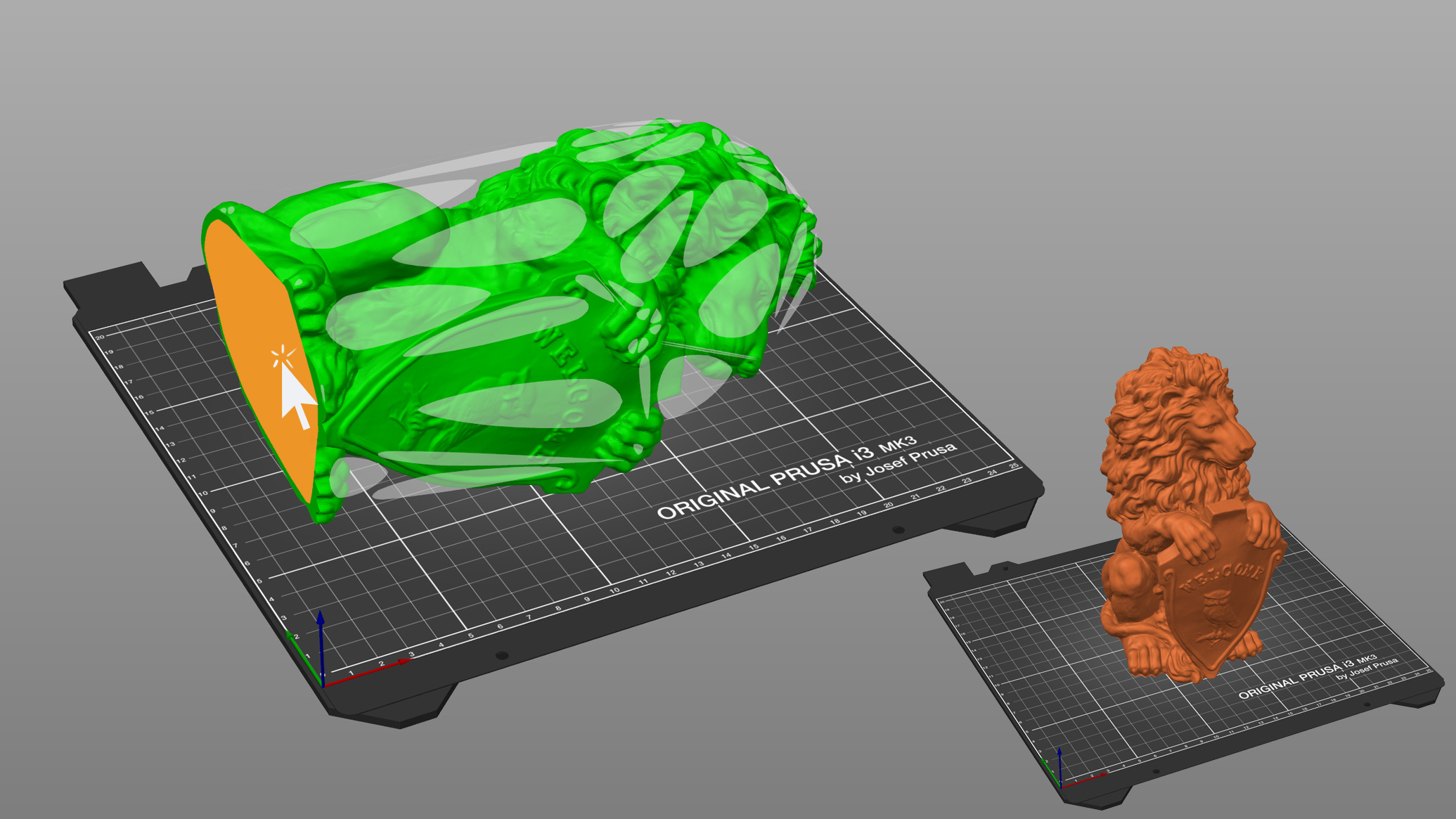
It’s possible that a model will be oriented incorrectly after import. This happens especially when the model was exported from a 3D modeling software that uses a different axis orientation. The fastest way to rotate the model into correct orientations is with the Place on Face tool F.

First, select a model you wish to re-orient. Then press the F key or pick the Place on Face tool from the left toolbar. Multiple white planes will appear on the model. Clicking on any of the white planes will align that plane with the print bed.

Was this article helpful?
This action is available only to registered users. Please log-in.
 

5 comments

Log in  to post a comment
Citizen Defense
Normally this works pretty well, but I just received a model one of my friends printed on a Bambu printer in a specific orientation which is the most stable/easy surface to use/identify as being flat. However, the white highlighted planes somehow identified various skewed angles not at all representing the much wider, longer flat surface. I see no guidance for generating what should be the most reliable surface to identify within an STL model.
JanPlayer2
Still cannot place parts of the root part on the face. Reimporting every part you want to place on its face is pretty annoying. However the root part can be unpacked into separate objects.
Larry
Place on face is a great tool, seems that it is unavailable for parts (when you add a part to the main stl.
Is there a way to enable that?
japat
After using the Place-On-Face tool, the bottom face, which is a perfectly flat plane, is not sliced as the first layer, but rather as 1/2 of the object, with the other half showing up in the 2nd layer. In other words, the first layer of the object is just the front half and the 2nd layer is the full object face. It still seems to print okay, but the second half, the part on layer 2, shows a rough face when finished and there is a seam where the layers overlap. Can I somehow correct the placement of the face to do the whole object face as the first slice?------------------------------------------------------------Later: The problem went away. I had to make a slight modification to the model (nothing to do with the lower face) and now the entire face is sliced properly as layer 1. I dunno...
Pete from NYC
Good to know there's a simple method instead of rotating with 3D round arrows:  Just use F on left hand menu and choose a plane.