


Sometimes it is necessary to reinstall an older version of the firmware. The method to update the firmware only allows newer firmware versions to be flashed. To flash the same firmware, or an older one, follow the steps below.
If it repeatedly only boots the printer and gives you the home screen, try to format your USB flash-drive or try a different one. Even if the flash drive works with G-Codes and printing, it may not work for flashing the firmware.
- To find the older versions, go to the Downloads page, select your printer, and click on Older versions.
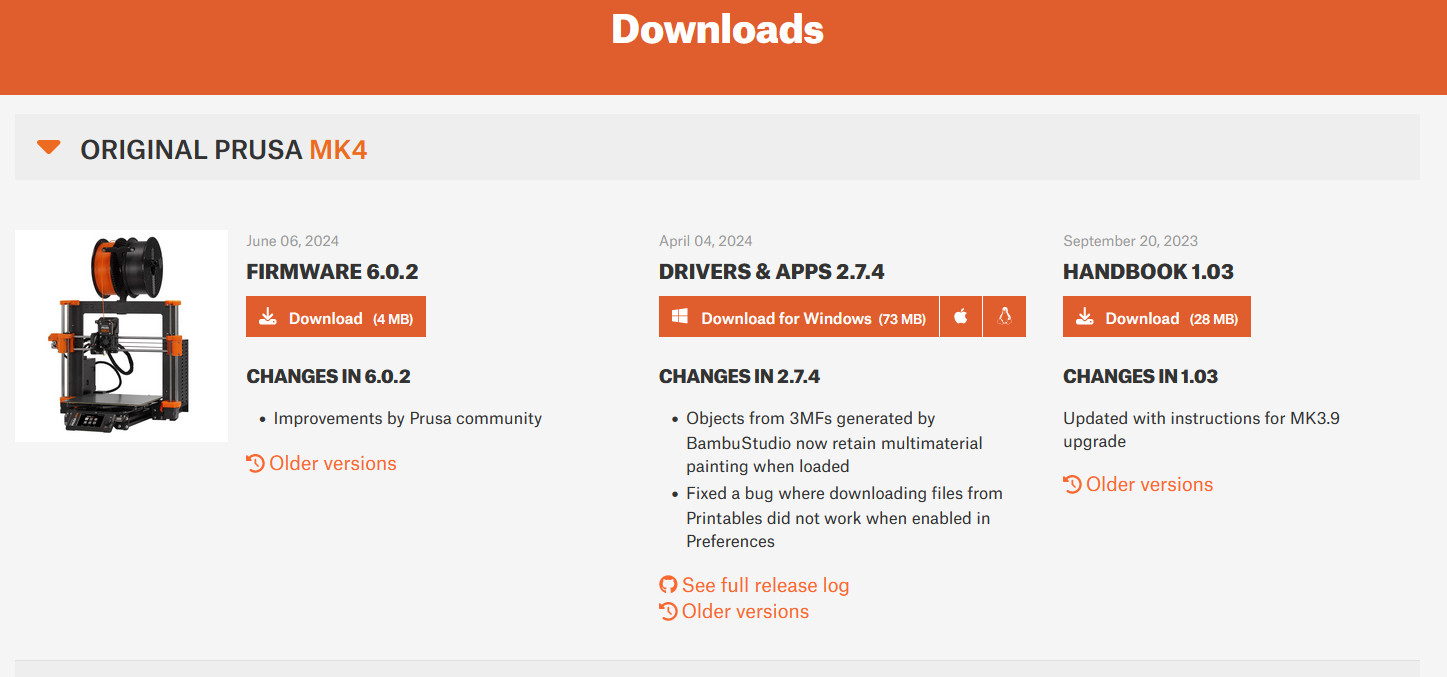
- Load the .bbf file directly into the root folder of the USB drive.
- Insert the drive into the printer.
- Push the reset button, and once the printer logo appears on the screen, press the display knob once.
- On the new screen, confirm the update by selecting the "FLASH" button and pressing the display knob.
Factory Reset
If you do a hard Factory Reset, the firmware that is in the USB will also be installed in the printer, so this can be used as a way to update the firmware.
Was this article helpful?
This action is available only to registered users. Please log-in.
9 comments
I found that simply deleting the hidden files on the thumb drive was enough (no need to reformat.
with out tis info i will never be able to set my mmu..
I all ready spent to many hours to set up...
25h..
that is not acettable
A single click at startup does absolutely nothing. Apparently, a double click works, but I didn't read that tip until I stumbled upon something else that worked: Instead of power-cycling the printer, I hit the reset button and it found the firmware file right away.