


On the MINI you flash the firmware using a USB flash drive.
- Download the Zip file for the firmware and extract it on your computer.
- Copy the .bbf file in your chosen language to the root directory of a USB flash drive (Not within a folder). All files have the English language, and if all files are added, the chosen languages will be English and Czech.
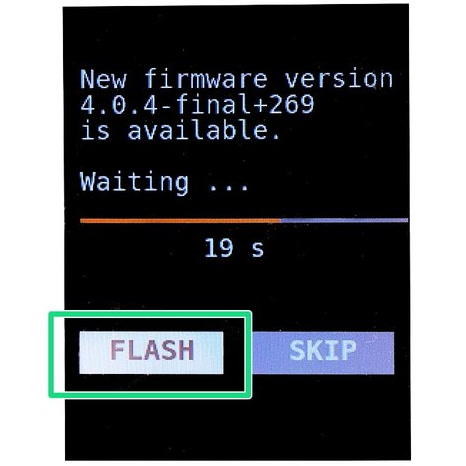
- Insert the USB flash drive and push the reset button. The bootloader will automatically compare the installed version with the one on the drive and, if newer, will automatically offer you to flash it.
- Confirm the update by selecting the "FLASH" button and pressing the knob.
If you have received the error "Firmware in the internal flash corrupted" use the alternative method below.
Updating from firmware pre-4.4.0
Starting from firmware, 4.4.0, the MINI+ has a new bootloader. This might cause some trouble when updating the firmware to version 5.1.0 and above. In this case, download firmware 4.4.0 or 4.4.1. The downloaded folder will have two files. Flash the printer firmware with the two files in the USB drive. After that, flash the latest firmware as usual.
Alternative method - older firmware release
It is not possible to flash to the same, or an older version of the firmware release, using the method above. To flash an older firmware the procedure is as follows:
- Push the reset button, immediately followed by double-pressing the selector knob.
- On the new screen, confirm the update by selecting the "FLASH" button and pressing the knob.
If it repeatedly only boots the printer and gives you the home screen try to format your USB flash-drive or try a different one. Even if the flash drive works with G-Codes and printing, it may not work for flashing the firmware.
Was this article helpful?
This action is available only to registered users. Please log-in.
27 comments
Leaving a comment to maybe help others. As the latest PrusaSlicer is not compatible with the older firmware.
Using this page : https://help.prusa3d.com/downloads/mini?versions=all
I downloaded the 4.4.0, unzipped and dragged and dropped the two .bbf files onto a flash drive.
I flashed the update, the bootloader installed successfully but then immediately went into an error state saying the files were corrupted on the drive and to retry the flash process(red screen saying retry). I took the chance to then put install 4.4.1 (both files) onto the same drive, and click retry(leaving the system powered on in the error state while i downloaded the 4.4.1 files). This successfully installed FW 4.4.1
With FW 4.4.1 and boot loader 2.0.2 successfully installed I was able to download the latest FW, 6.4.0 onto the flash drive and flash the latest FW without a hitch.
this guide helps explain a bit: https://help.prusa3d.com/article/firmware-updating-mini-mini_124784
Biggest issue i had was my original flash drive I was try to use I guess is slow or something as the FW was never recognized and the system would boot straight to home screen. Searching around the house i found an old flash drive and tried the above steps and it worked fine. so if you are having the issue of the system not going through the Firmware update steps, despite having having both 4.4.1 .bbf files, it may simply be the speed of the drive you are using is too slow and is not recognized before the bootup process completes.
If you do and printer still won't perform flashing sequence, please contact our customer support.
I tried David Kašpar's solution, but it didn't work: I would get a red "wrong size" error at boot.
Here is what worked for me:
- Blank 8GB USB formatted to FAT32
- Add ONLY the file `Buddy_update_pre_4.4_4.4.1+4194.bbf` from the 4.4.1 update
- Boot MINI+ (I didn't need the 2x selector knob trick)
- Wait until MINI+ starts showing "Updating bootloader" and "looking for BBF..." one after the other
- Turn off the MINI+
- Add the other file `Buddy_4.4.1+4194.bbf`
- Reboot again
- Update should complete
Hope this helps!